Instance info and management
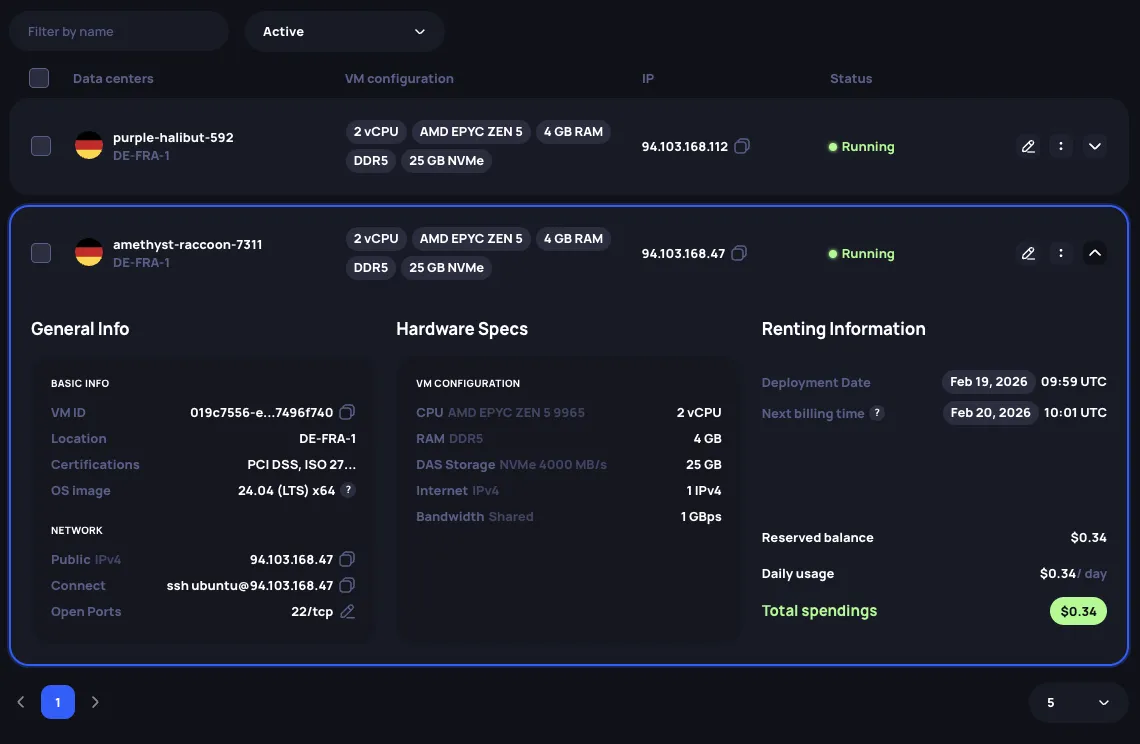
After deploying an instance, you can view and manage it from the Running Instances page. Use the search bar to filter instances by name or the status dropdown to narrow the list.
Instance information
Each instance appears as a card with its name, location, hardware summary, IP address, and status. Click the expand arrow to reveal full details — general info, hardware specs, connection details, and billing.
Instance management
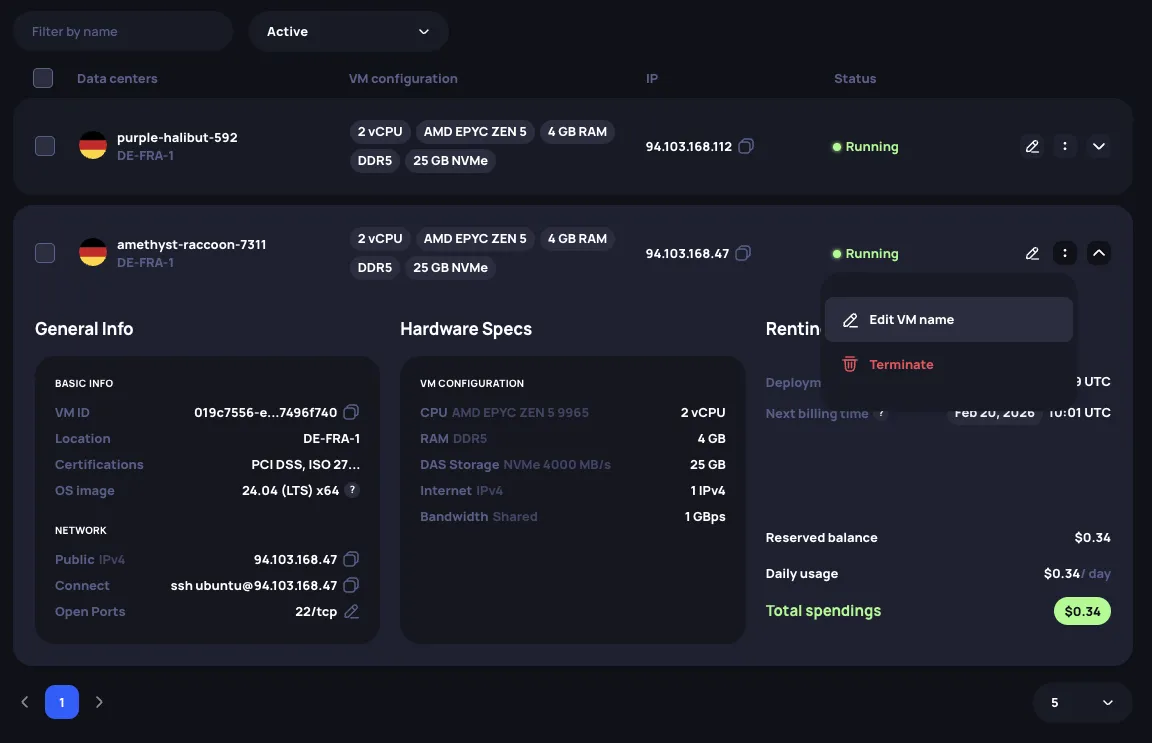
Click the three-dot menu on an instance card to access the available actions:
- Edit name — rename the instance.
- Reboot — restart the instance. Restart is required to apply certain changes, such as attaching a new storage or Public Ip. Rebooting does not affect the reserved balance or billing.
- Remove — stop the instance and end the rental agreement. Any unused reserved balance is returned to your account.
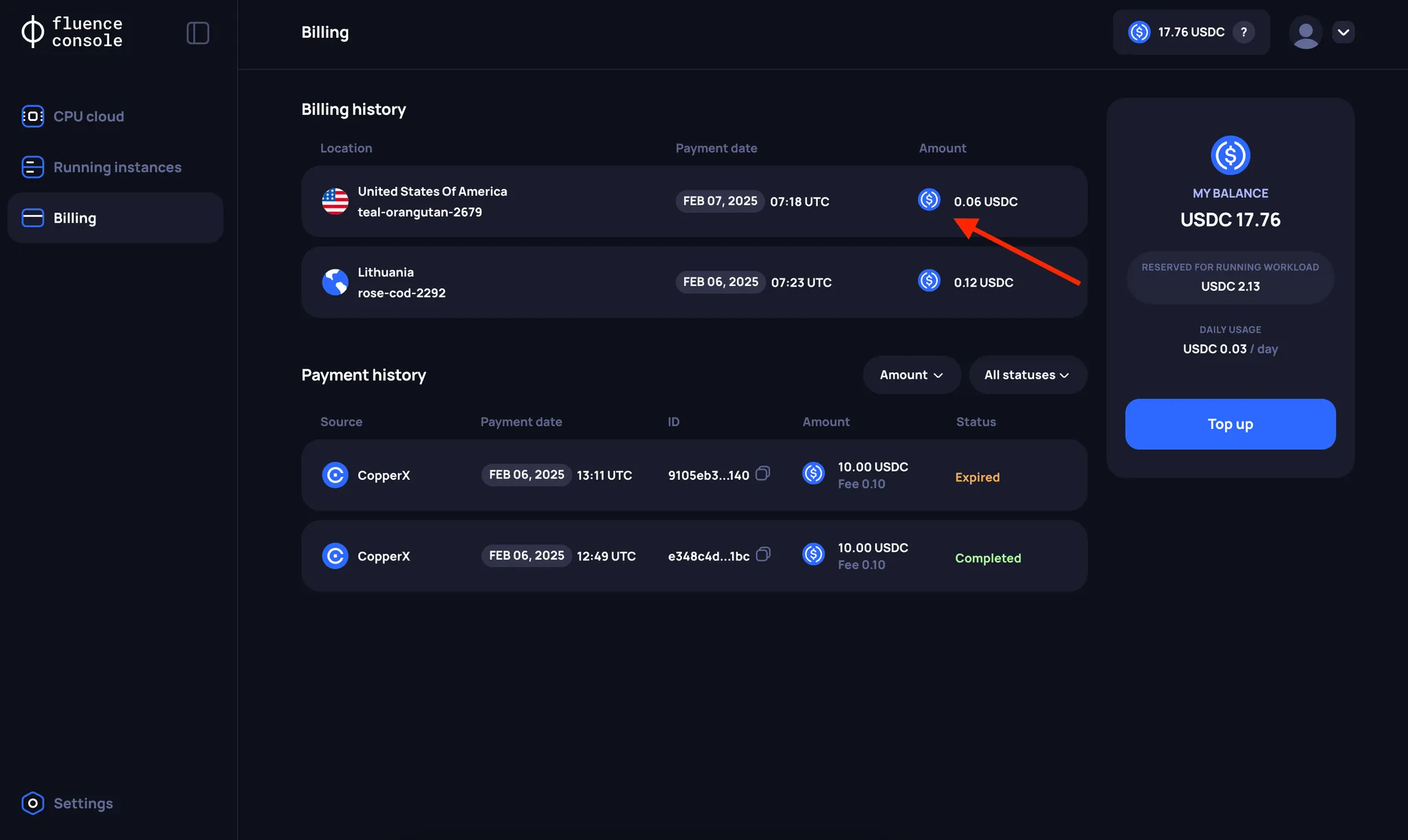
Billing history
The history of your charges can be found on the Billing page in form of downloadable CSV files.